
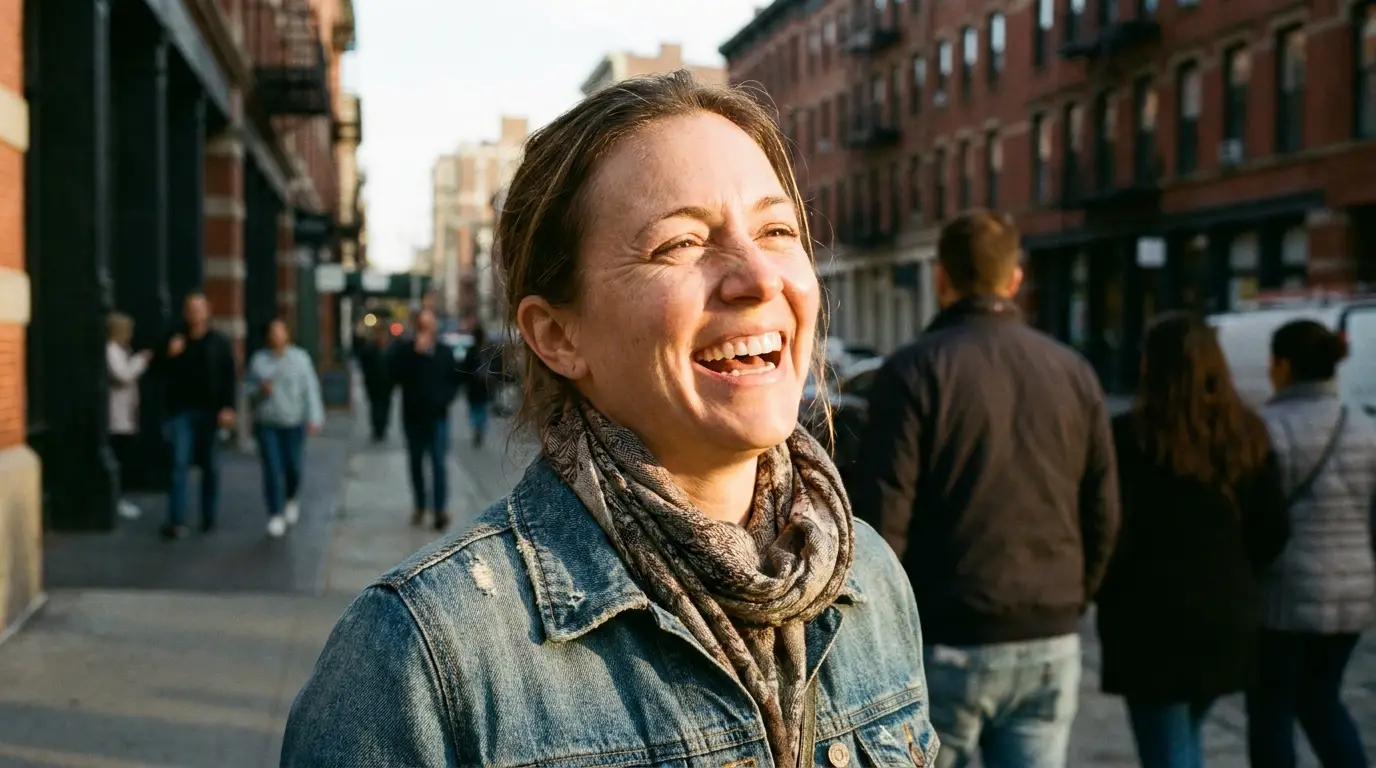
Compose the still like a first frame
The best frames to animate leave somewhere for motion to go. A subject dead-center with no negative space forces the model to invent an awkward move; a subject in the lower third with open sky invites a crane-up, a road receding into fog invites a push forward. Before you animate, ask: what would move in the next three seconds, and is there room in the frame for it?
Avoid stills with heavy motion blur or extreme close crops — the model has to hallucinate whatever sits outside the frame the moment the camera moves. Sharp, slightly wider compositions animate cleaner, and you can always punch in later with a zoom preset.
Direct the motion, protect the subject
Your prompt now describes only what changes: 'she turns toward the window as the curtains lift in the breeze, gentle handheld drift.' Don't re-describe what's already in the image — restating 'a woman in a red coat' invites the model to redraw her instead of moving her. Small, physically plausible motion keeps identity locked; violent action is where faces and logos drift.
Camera presets work on image-to-video too, and they're the safest motion of all, because moving the camera doesn't require redrawing the subject. An orbit-right around a product shot or a slow dolly-in on a portrait adds production value with near-zero identity risk.
End frames: animate from A to B
Kling 3 accepts an end frame as well as a start frame, which turns image-to-video from 'animate this' into 'get from this image to that one.' Give it a wide shot and a close-up for a natural push-in; two poses of a character for a performed gesture; a product closed and open for a reveal.
It's also the seamless-loop trick: set the end frame identical to the start frame and the clip cycles back on itself — the backbone of live wallpapers, stream overlays, and looping social posts.
Generate the still, then the motion
You don't need an existing photo. A common Nidhogg workflow is two-step: art-direct a frame with an image model — Seedream v4.5 for photoreal, FLUX 2 for stylized — iterating cheaply at a few credits per try until composition and light are exactly right, then send that frame to a video model as the start frame.
This pipeline is why image-to-video is the professional default over pure text-to-video: every expensive video generation starts from an approved frame, so the failure mode is 'wrong motion,' never 'wrong subject.'