Nidhogg
Log in

Video to Video AI

Video-to-video means footage goes in and transformed footage comes out — same timing, different content or look. Nidhogg offers two honest versions of it: motion transfer, where a reference clip's movement drives a completely new subject, and prompt-instructed editing, where an uploaded shot keeps its motion but changes appearance on command.

Between them they cover most of what people actually mean by 'video to video': put this dance on my character, turn this daytime shot into night, restyle this clip as animation, fix this frame without reshooting. Neither is a filter — both re-render the footage with a generative model, which is why the results move like real video instead of a pasted overlay.

Transfer motion to a new subject
Video to Video AI

Motion transfer: reuse a performance

Kling Motion lifts the movement from a reference video — a dance, a gesture sequence, a walk cycle — and applies it to a new subject. The choreography, weight, and timing survive; the performer changes. It's how a brand mascot ends up doing a trending dance, or a designed character inherits a real actor's motion without a mocap stage.

Good references make good transfers: one performer, full body in frame for the whole clip, a steady camera, and a clean silhouette against the background. The more legible the source movement, the more faithfully it lands on the new subject.

Prompt edit: same shot, different world

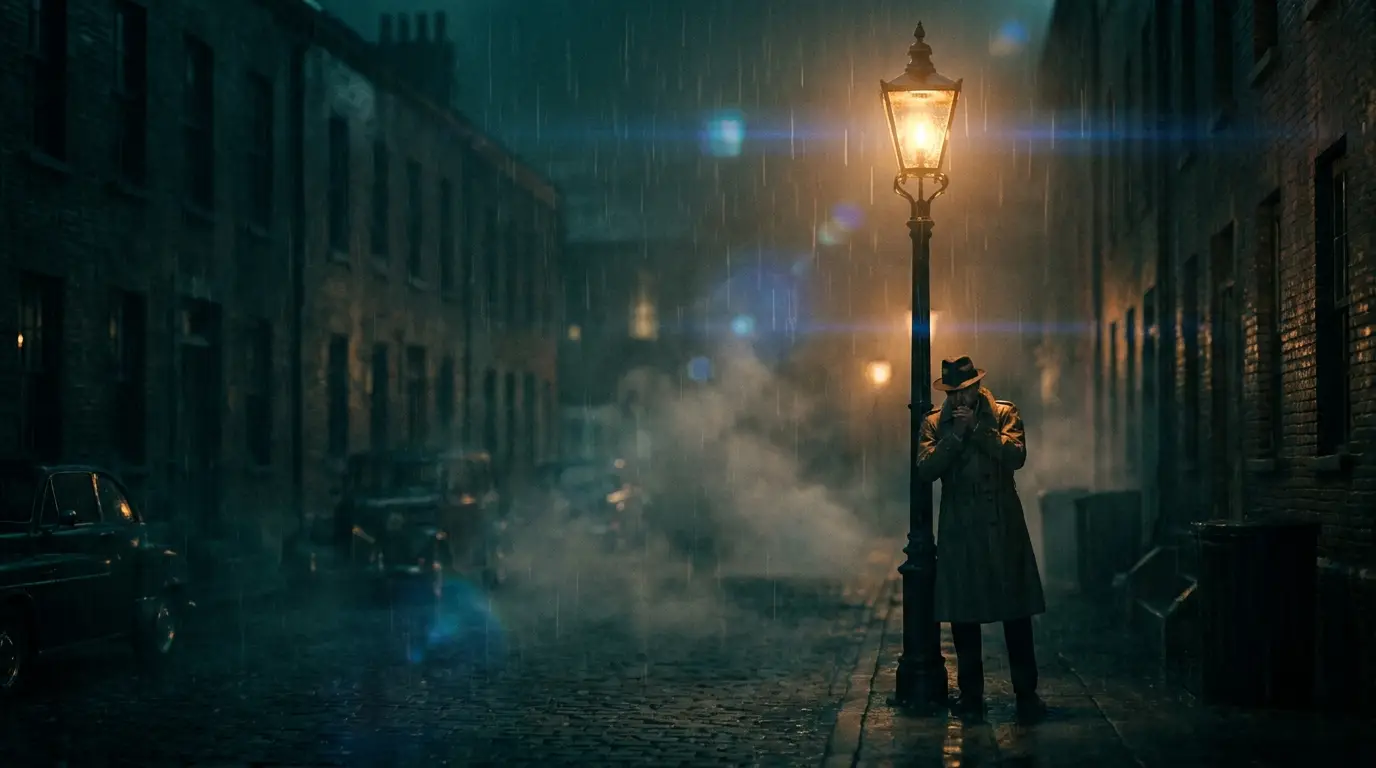
The second mode keeps your footage as the foundation. Upload a clip to Kling O1 Edit and describe the transformation — 'make it snow', 'set this at night in the rain', 'render this in a painted animation style' — and the model re-renders the shot with your instruction applied while motion and framing carry through.

This is the mode for restyles, environment swaps, object removal, and wardrobe changes. Heavier transformations vary more between runs, so generate a few takes of a big restyle and keep the strongest.

Choosing the mode — and chaining shots

Decide by which half of the video is the asset. If the motion is what matters and the subject should change, that's motion transfer. If the footage is what matters and the look should change, that's a prompt edit. They answer opposite questions with the same input type.

Both operate on short clips — individual shots of a few seconds, not full timelines. For a sequence, process each shot separately and assemble in your editor; keeping the prompt language consistent across shots keeps the look coherent from cut to cut.

FAQ

Is video-to-video just a style filter?+

No. A filter overlays a look on existing pixels; these tools re-render the footage generatively, so changed elements move, cast light, and occlude correctly instead of floating on top of the frame.

Can I turn my footage into anime?+

Yes — upload the clip and instruct the style change. Strong stylization is the most variable kind of edit, so expect to run it more than once and choose the best take.

What makes a good motion reference?+

One performer, full body visible for the whole clip, a steady camera, and movement with clear silhouettes. Busy backgrounds and cropped limbs degrade the transfer.

How long can input clips be?+

Both modes work on short clips — seconds per pass, matching Nidhogg's shot-length video generation. Longer pieces are handled shot by shot and assembled in your editor.

Which mode should I start with?+

If you're changing who or what is moving, start with motion transfer. If you're changing how an existing shot looks, start with a prompt edit on Kling O1 Edit.

Ready to try it?

Free credits on signup — no card required.

Transfer motion to a new subject

Related